


• About
  • Contact
  • Privacy Policy
  • Terms & Conditions
  • Disclaimer
  • Cookie Policy
Superdova.com
Advertisement
  • AI Tools
  • Internet Guides
  • Tech How-To
  • Apps & Software
  • Online Safety
No Result
View All Result
  • AI Tools
  • Internet Guides
  • Tech How-To
  • Apps & Software
  • Online Safety
No Result
View All Result
Superdova.com
No Result
View All Result
Home Apps & Software

Your Phone Already Knows Which App Is Draining Its Battery

Amit by Amit
September 29, 2026
in Apps & Software
0
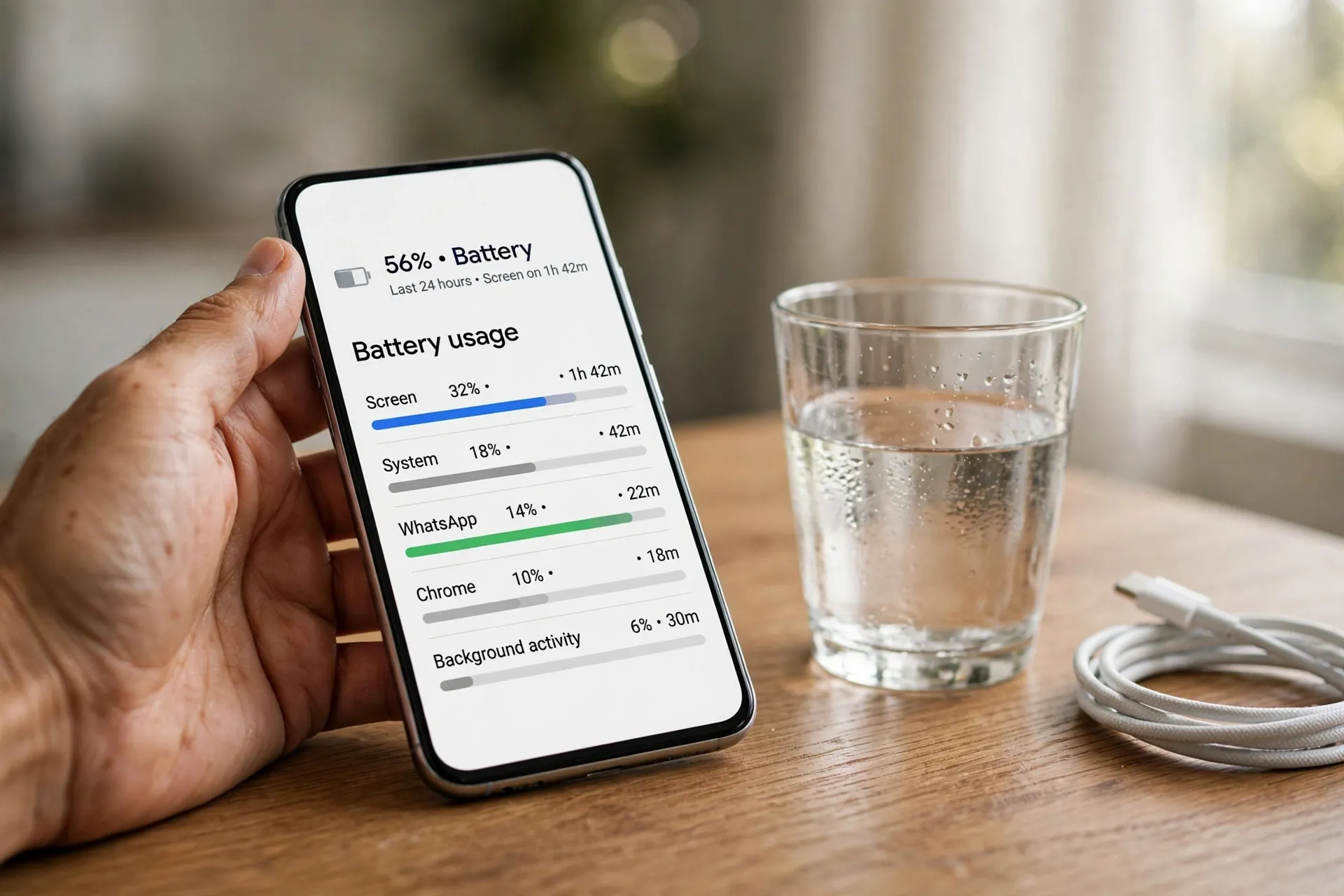
Hand holding a smartphone showing its battery usage screen, next to a glass of water and a charging cable
0
SHARES
1
VIEWS
Share on FacebookShare on Twitter

If your phone has started dying by dinner when it used to cruise past bedtime, the instinct is to blame the battery itself. And sometimes that’s fair — batteries do lose capacity with age. But far more often, the drain is coming from a single app, quietly working harder than it should.

The good news is that you don’t have to guess which one. Your phone already keeps a detailed ledger of exactly which apps used how much battery and when. It takes about two minutes to find it, and it turns a vague “my battery is bad” into a specific name and number.

Table of Contents

Toggle
  • The two-minute check: where the report lives
  • How to read the numbers without overthinking them
  • Three patterns that actually mean something
  • What to do once you’ve named the culprit
  • Two instincts worth resisting

The two-minute check: where the report lives

On iPhone, open Settings and tap Battery. Apple’s support documentation confirms the phone shows usage for the last 24 hours and the last 10 days, including Battery Usage by App and Activity by App — in other words, how much charge each app consumed, and how long it was actually active.

On Android, the exact path varies by brand. On a Pixel, go to Settings > Battery and tap Battery usage — you can switch to View by app to see each app’s usage since the last full charge. On Samsung phones, the same per-app breakdown sits under Settings > Battery.

Whichever phone you have, look at this screen before you change anything. It’s the difference between fixing a problem and poking around in the dark.

How to read the numbers without overthinking them

The list can look alarming at first — an app that “used 34% of your battery” sounds dramatic. A few things are worth knowing before you draw conclusions.

First, those percentages are shares, not totals. If you barely touched your phone all day, one app will look like it consumed 40% of your battery even though the phone hardly drained at all. The percentage matters most when the drain itself is the problem.

Second, pay attention to when the activity happened, not just how much. On iPhone, Apple splits activity into Screen On and Screen Off. An app with heavy Screen Off usage is doing things while the phone sits in your pocket — syncing, fetching, pinging location. That’s the pattern that matters most.

Third, zoom out. The last-24-hours view can be skewed by a single odd day — a long video call, a trip with heavy navigation. The 10-day view smooths that out and shows you what’s actually habitual.

Three patterns that actually mean something

An app you barely opened is near the top. This is the classic sign of a background drain: something running while you weren’t looking. If you opened a social app for ten minutes and it sits above apps you used all day, that’s worth investigating.

The drain started suddenly. Ask what changed. Did the app recently update? Did the phone? After a major software update, the phone typically spends a few days finishing background work — re-indexing files, re-downloading content — which temporarily raises drain. If the timing lines up with an update, give it a few days before you worry.

Everything is up, not just one app. If all the numbers are elevated and the phone feels warm in your pocket, that’s more likely a system thing — a stuck process, a struggling network connection (your phone burns more power hunting for signal), or a battery that’s genuinely aging. A single outlier, by contrast, is an app problem, and app problems are fixable.

What to do once you’ve named the culprit

Work down this ladder — start with the gentlest fix, not the most dramatic.

Restrict its background activity. On iPhone, go to Settings > General > Background App Refresh and switch it off for that app. On Android, long-press the app’s icon, tap App info, and look at the battery or background options. On Samsung, Settings > Battery > Background usage limits lets you put apps to sleep or deep sleep. One caution: don’t do this to messaging, banking, or anything where you need notifications the moment they arrive — Samsung itself notes that deep-sleeping apps won’t wake for notifications until you open them.

Trim its permissions. Location access set to “Always” is a classic quiet drain for apps that have no business tracking you around the clock. A quick permissions review is often more effective than any battery-saver mode.

Update it. Bugs that cause excessive background activity get fixed, and that’s one of the reasons apps update as often as they do.

And if none of that helps, consider whether the app has earned its place. Some apps are just poorly built. Report the problem to the developer — on the App Store, the app’s page has an App Support link — and look for an alternative that does the same job without eating your battery.

Two instincts worth resisting

The first is force-closing the offender every hour. A suspended app isn’t meaningfully consuming power, and the cycle of killing and relaunching it can cost more battery than leaving it alone. The phone already manages this — here’s why swiping apps away doesn’t help.

The second is deleting the app in a huff. If you actually use it, a background restriction or an update usually does the job. Save the dramatic gesture for apps you don’t use at all — those are better removed than tolerated.

The battery screen is one of the few places on your phone that answers a question with evidence instead of guesswork. Next time the charge starts disappearing faster than it should, check the ledger first. Chances are it’s not the phone. It’s one app — and now you know which one.


Previous Post

What Your Phone’s Night Mode Actually Does

Next Post

Your Old Accounts Are Still Out There. Here’s What to Do About Them

Amit

Amit

Next Post
Hands on a laptop dragging an old user-profile avatar into a trash bin on screen — a visual for deleting forgotten online accounts

Your Old Accounts Are Still Out There. Here's What to Do About Them

Leave a Reply Cancel reply

Your email address will not be published. Required fields are marked *

Stay Connected test

  • 24k Followers
  • 99 Subscribers
  • Trending
  • Comments
  • Latest
Photorealistic illustration of a laptop displaying an email inbox with a breach warning, with a cracked red padlock floating above the screen

Your Email Was in a Data Breach? Don’t Panic — Do These Five Things

September 23, 2026
Illustration of a laptop showing ChatGPT's settings panel with the Custom instructions field highlighted

What to Put in ChatGPT’s Custom Instructions (With Examples Worth Copying)

September 22, 2026
Illustration of a golden master key hovering over a glowing inbox icon on a laptop screen, surrounded by shields and padlocks

If Someone Gets Into Your Email, They Get Into Everything

September 22, 2026
Illustration of a smartphone showing an AI chat conversation with a magnifying glass examining the answers, symbolising fact-checking

AI Chatbots Sound Confident Even When They’re Wrong. Here’s How to Check Their Answers

September 23, 2026
Illustration of a smartphone showing an AI chat conversation with a magnifying glass examining the answers, symbolising fact-checking

AI Chatbots Sound Confident Even When They’re Wrong. Here’s How to Check Their Answers

9
Illustration of a golden master key hovering over a glowing inbox icon on a laptop screen, surrounded by shields and padlocks

If Someone Gets Into Your Email, They Get Into Everything

8
Photorealistic illustration of a laptop displaying an email inbox with a breach warning, with a cracked red padlock floating above the screen

Your Email Was in a Data Breach? Don’t Panic — Do These Five Things

6
A home Wi-Fi router sending a glowing wireless signal toward a laptop on a couch, with a data cable running into the wall — illustrating the difference between Wi-Fi speed and internet speed

Your Wi-Fi Speed and Your Internet Speed Are Not the Same Thing

5
A hand holding a smartphone showing a chat screen with the word "online" under a contact's name

Your WhatsApp “Online” Status Isn’t as Private as You Think

October 20, 2026
Flat illustration of a laptop showing a logout symbol with a small brass key beside it, on a blue and grey background

Signed Out Again? Why Websites Keep Logging You Out

October 20, 2026
Woman with earbuds relaxing in an armchair while her phone reads an article aloud, tea on a side table, warm evening light

Too Tired to Read? Your Phone Can Read the Screen for You

October 19, 2026
Photograph of a smartphone lying on a wooden café table, its screen showing a map with a glowing blue location pin, a hand reaching toward it in the background

Lost Your Phone? Ring It, Lock It, or Find It From Any Computer

October 19, 2026

Recent News

A hand holding a smartphone showing a chat screen with the word "online" under a contact's name

Your WhatsApp “Online” Status Isn’t as Private as You Think

October 20, 2026
Flat illustration of a laptop showing a logout symbol with a small brass key beside it, on a blue and grey background

Signed Out Again? Why Websites Keep Logging You Out

October 20, 2026
Woman with earbuds relaxing in an armchair while her phone reads an article aloud, tea on a side table, warm evening light

Too Tired to Read? Your Phone Can Read the Screen for You

October 19, 2026
Photograph of a smartphone lying on a wooden café table, its screen showing a map with a glowing blue location pin, a hand reaching toward it in the background

Lost Your Phone? Ring It, Lock It, or Find It From Any Computer

October 19, 2026
Superdova.com

SuperDova is an independent technology publication covering AI tools, software, internet guides, digital skills and online safety. Our goal is to make technology easier to understand and use.

Follow Us

Browse by Category

  • AI Tools
  • Apps & Software
  • Internet Guides
  • Online Safety
  • Tech How-To

Recent News

A hand holding a smartphone showing a chat screen with the word "online" under a contact's name

Your WhatsApp “Online” Status Isn’t as Private as You Think

October 20, 2026
Flat illustration of a laptop showing a logout symbol with a small brass key beside it, on a blue and grey background

Signed Out Again? Why Websites Keep Logging You Out

October 20, 2026
  • About
  • Contact
  • Privacy Policy
  • Terms & Conditions
  • Disclaimer
  • Cookie Policy

© 2026 SuperDova — Technology, AI & Digital Guides. All Rights Reserved.

No Result
View All Result
  • AI Tools
  • Internet Guides
  • Tech How-To
  • Apps & Software
  • Online Safety

© 2026 SuperDova — Technology, AI & Digital Guides. All Rights Reserved.









