



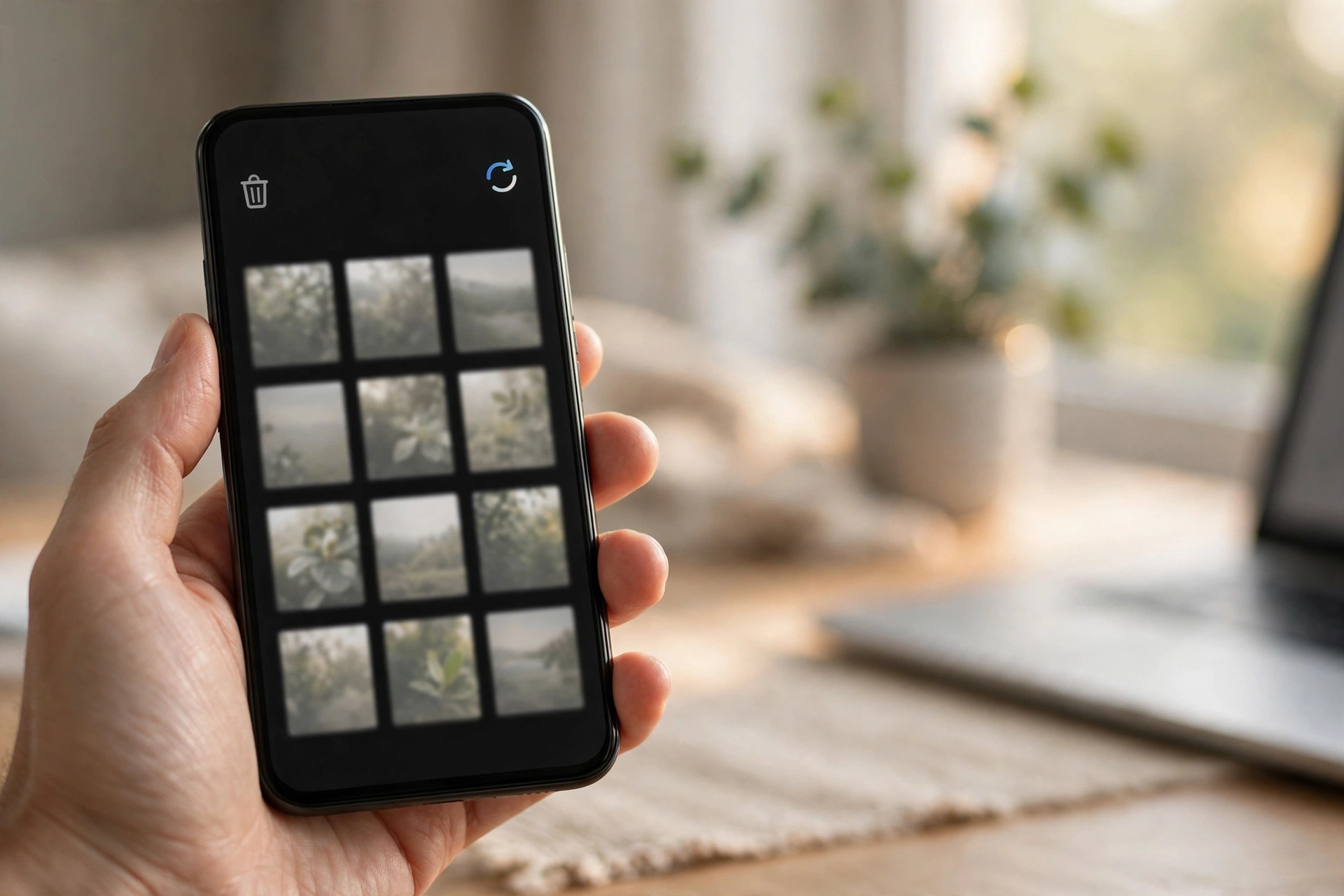
That sinking feeling is familiar to almost everyone: you were clearing out blurry duplicates, your thumb slipped, and a photo you actually wanted is gone. Before you resign yourself to losing it, here’s the good news — on every major phone and computer, “delete” is almost never instant. The photo is almost certainly sitting in a trash folder right now, waiting for you to take it back. The catch is that the trash doesn’t keep things forever, so the sooner you check, the better. Here’s how to recover deleted photos on every major platform — and what to do honestly when the trash is already empty.

Delete doesn’t mean destroyed — it means moved
Modern devices treat deletion as a two-step process. The first tap moves the photo into a holding area (called Trash, Recycle Bin, or Recently Deleted, depending on the device). Only when that holding area empties itself — or you empty it manually — does the file get permanently wiped. Each platform has its own countdown, and it’s longer than most people think:
- Google Photos: backed-up photos stay in Trash for 60 days; photos that were never backed up stay for 30 days on Android 11 and newer.
- iPhone and iPad: deleted photos sit in the Recently Deleted album for 30 days, with a countdown shown on each thumbnail.
- Samsung Gallery: its own Recycle bin keeps deleted photos for 30 days, separate from Google Photos.
- Windows and Mac: deleted files stay in the Recycle Bin / Trash until you empty it or the drive fills up.
Knowing the clock matters. If you deleted the photo a month ago, you still have time. If it was a year ago, it’s genuinely gone — and no tool can honestly promise otherwise.
Getting them back on an Android phone
Start with Google Photos, since that’s where most Android photos live:
- Open the Google Photos app.
- At the bottom, tap Collections, then Trash.
- Touch and hold the photo (or photos) you want back.
- Tap Restore at the bottom.
Restored photos return to your Google Photos library, your phone’s gallery app, and any albums they were in. If the photo was never backed up to Google Photos, the 30-day clock applies — and if you permanently deleted it from your phone’s own gallery app without a backup, recovery isn’t possible.
One wrinkle worth knowing: Samsung phones have two trash folders. If the photo isn’t in Google Photos’ Trash, open the Gallery app, tap the menu, and look for Recycle bin — deleted photos live there for 30 days. It’s also worth glancing at photos.google.com on a computer; the web trash occasionally shows items the mobile app filters out.
Getting them back on an iPhone or iPad
Apple keeps things simple — deleted photos go to one place:
- Open the Photos app and tap Albums.
- Scroll down to the Utilities section and tap Recently Deleted.
- Unlock it with Face ID, Touch ID, or your passcode — since iOS 16, this album is locked for privacy.
- Tap Select, pick your photos, and tap Recover.
Each thumbnail shows how many days it has left before permanent deletion. If you use iCloud Photos, the Recently Deleted album is shared across all your devices, so you can recover from any of them — or from a browser at iCloud.com under Photos → Recently Deleted.
If the photos aren’t in Recently Deleted either, check your other apps before giving up: photos shared to someone or moved into a shared album can look deleted when they’re actually just living somewhere else in your library.
Getting them back on a Windows PC or Mac
On a computer, deleted files land in the Recycle Bin (Windows) or Trash (Mac). Open it from the desktop, find your photos, right-click, and choose Restore (Windows) or Put Back (Mac).
This applies to photos that were stored on the computer itself. If your photos live in Google Photos or iCloud, don’t hunt through the computer’s trash — recover them from the cloud trash folders described above, and the fix will sync back to every device automatically.
When the trash is empty — the honest truth about recovery
If the photo has passed its countdown, or someone emptied the trash, the file is permanently deleted. This is where honesty matters, because the internet is full of software that promises to bring back photos deleted months or years ago. Here’s the realistic picture:
- Google Photos offers a recovery request tool for backed-up photos deleted within the last few days — it’s a best-effort attempt, and it doesn’t always work.
- Third-party “recovery” apps occasionally help on older Android phones with removable storage, but on modern encrypted phones they’re mostly useless — and many are vehicles for ads, subscriptions, or worse. Treat any tool that demands payment before showing results with deep suspicion.
- Cloud backups you forgot about are the real lifeline. Check OneDrive, Dropbox, an old phone’s camera roll, or a computer you once synced with. People find “lost” photos in old backups more often than any software finds them on a wiped phone.
Before you delete anything important on purpose, move your photos off the phone properly — a copy on a computer or in a second cloud service is worth more than any recovery tool after the fact.
Making sure this never happens again
Recovery is a safety net, not a strategy. Two small habits make accidental deletion a non-issue:
Turn on photo backup. In Google Photos, check that backup is actually enabled (tap your profile picture → Photos settings → Back up). On iPhone, confirm iCloud Photos is on in Settings. Backup is what turns a 30-day trash window into a 60-day one on Google Photos, and it’s what keeps your photos safe if the phone itself is lost or broken. Backup eats into your cloud storage, so it helps to know where your Google Account’s free 15 GB actually goes before you worry about running out.
Stop treating deletion as organization. Deleting photos to free up space is usually treating the symptom — blurry screenshots and duplicate videos are rarely the real storage hog. Sort out what’s actually filling your phone, and the pressure to bulk-delete goes away.
Accidental deletion will happen to everyone eventually. The difference between a heart-stopping moment and a shrug is knowing that the trash folder exists — and checking it before the countdown runs out. More practical fixes like this live in our Tech How-To section.












